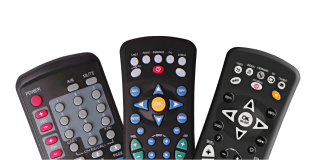
GDI Technology remote controls can operate audio and video devices of almost any brand. For each of your audio/video devices, you have to enter a Device Code in the remote control. This search tool can help you find the right Device Code for your equipment. Note: Your remote model number is listed inside the battery compartment and or on the front of the remote.
Setup (Manual Code Programming)
Search for the device code in the GDI Code Finder.
Press the DEVICE key for over 3 seconds until the LED lights up.
Input the 3 digit number from the code list, the LED will flash one time if you entered the correct code. Ex:”000″. (Inputting the code correctly, the LED will light up.)
Then press the “OK” key , The LED light will switch off after it flashes 2 times and correct code is saved into memory.If the wrong Code is inputted, the LED will light will turn off & light up again to indicate correct code has to be inputed.
Note: if no keys are pressed for 20 seconds, the LED will turn off and phone will exit Programming Mode.